Secure your home Wi-Fi and router
Your router is the front door of your home network. Ten settings to check tonight, from the admin password and WPA3 to firmware updates and a guest network for smart devices.
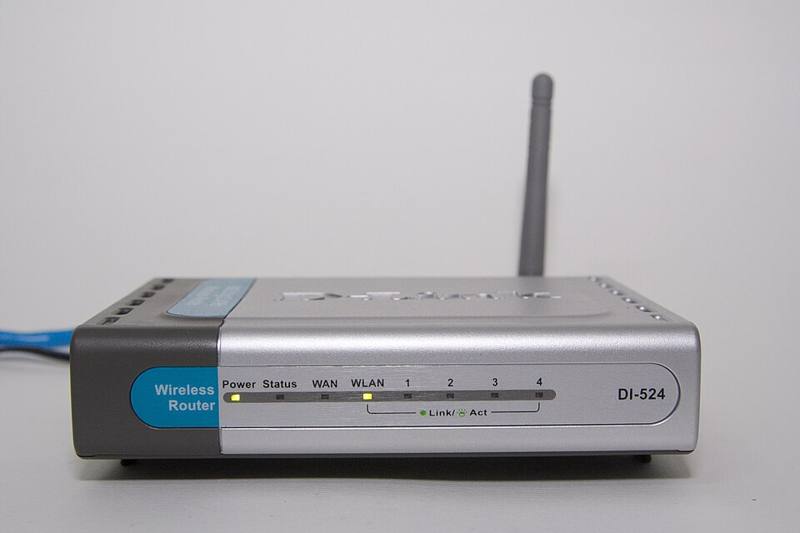
Why the router matters
Every device in your home, from laptops to doorbells, reaches the internet through your router. A router with a default password or old firmware can let attackers watch traffic, redirect you to fake websites by changing DNS settings, or recruit the router into a botnet. Routers are a favorite target precisely because people set them up once and never look again.
Ten settings to check
You change these in the router's admin page (often 192.168.0.1 or 192.168.1.1, printed on a sticker on the router) or in the manufacturer's app.
- Change the admin password. This is the password for the router's settings, not the Wi-Fi password. Many older routers shipped with
admin/admin. Use a long unique password stored in your password manager. - Use WPA3 or WPA2 encryption. Choose WPA3-Personal if all your devices support it, or "WPA2/WPA3 mixed" mode. Never use WEP or an open network.
- Set a strong Wi-Fi password. At least 12 to 16 characters; a passphrase of four random words works well and is easy to share with guests.
- Update the firmware. Turn on automatic updates if available. If your router no longer receives updates (check the manufacturer's support page for "end of life"), replace it.
- Turn off WPS. Wi-Fi Protected Setup, especially the PIN method, has known weaknesses.
- Turn off remote management unless you need it. This stops anyone on the internet from reaching the admin page.
- Consider turning off UPnP. Universal Plug and Play lets devices open ports automatically, which malware can abuse. Some games and consoles need it; if so, keep the router updated.
- Create a guest network for visitors and for smart home gadgets, so they are separated from your computers and phones. See smart home devices.
- Rename the network (SSID) to something that does not reveal your name, address or router model.
- Review connected devices in the router's device list every few months and remove anything you do not recognize.
WPA2 vs WPA3 at a glance
| Feature | WPA2 | WPA3 |
|---|---|---|
| Introduced | 2004 | 2018 |
| Protection against offline password guessing | Weak if password is short | Strong (SAE handshake) |
| Forward secrecy | No | Yes |
| Device support | Universal | Most devices from about 2019 onward |
Should you use a different DNS?
DNS is the internet's phone book. Your provider's DNS works fine, but you can choose a filtering DNS service that blocks known malicious sites (several free options exist, such as Quad9 at 9.9.9.9, Cloudflare's 1.1.1.2 for malware blocking, or 1.1.1.3 which adds adult content filtering). Set it on the router to protect every device at once.
Rented routers and mesh systems
If your internet provider supplies the router, you can usually still change the admin and Wi-Fi passwords in its app; firmware is updated by the provider. Modern mesh systems are often easiest to keep secure because they update automatically and show connected devices in an app.
Put a reminder in your calendar twice a year: check for router firmware updates, review connected devices and confirm your Wi-Fi is still using WPA2 or WPA3.